
Every user in MASV is assigned a role. The role assigned determines what a user can do and access in MASV, according to the permissions associated with the role. Depending on the type of MASV account you have, you can assign system roles or create and assign custom roles.
Note: Custom roles are an Enterprise feature. For details about enabling custom roles for your account, please contact support@masv.io.
This page includes the following topics:
- Overview
- System roles
- Custom roles
- Permissions
- Roles and single sign-on (SSO)
- Assign and manage roles
- Create and manage custom roles
Overview
When you create a MASV account, you are assigned the role of Owner and have full permissions for the teams you create. As Owner, you can specify the role assigned to each user that you invite to your team and you can set a default role. Initially, the default role is set to the Member role.
Things you need know:
- You can assign only one role per user, per team.
- Roles are initially assigned to users via the team invitation you send. You can assign the default role, select a role per user invitation, or configure your identity provider to assign a role if you are using SSO (single sign-on) in MASV.
- Permissions are predetermined for system roles – they cannot be edited or deleted, but a system role can be turned off if you don’t need it.
- Some permissions have a scope that limits the permission to user-centered information and activities (Own).
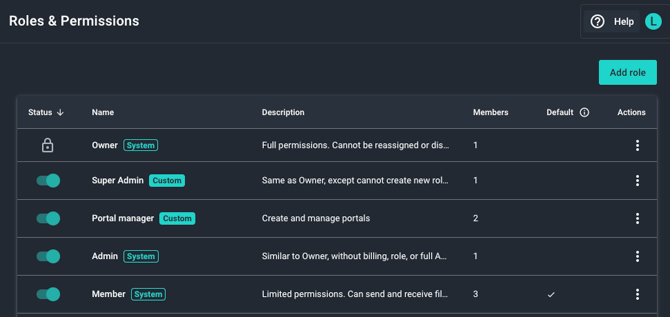
- Only Owners have access to the Roles & Permissions page unless they create a custom role that includes access. Admins have access to the User Management page, which includes role assignment.
- A user cannot change their own role.
- Use teamspaces if you want to create subgroups within a team to limit access to content without affecting functionality.
System roles
All MASV teams include the following system roles with predetermined permissions:
- Owner: Only one per team, this role is assigned to the user who creates the team. Owners have full permissions, including account and billing information, full API key management, and permission to manage users and roles. Owners have full access to all teamspaces, whether or not they are assigned to them.
- Admin: Has most of the same permissions as the Owner, except for role and billing access. They can manage users, integrations, and portals, and they can manage their own API keys. An Admin can access all teamspaces, whether or not they are assigned to them. A team can have more than one Admin.
- Member: Limited permissions. A Member can send and receive only the files that they have permission to access and cannot manage users, portals, or integrations. You can control a Member’s access to content with teamspaces. Member is the default role unless otherwise specified.
- Contributor: Minimal permissions, so ideal for users who are external to your organization. You can require a Contributor to authenticate before uploading to the portals that they have permission to access (as determined by portal and teamspace settings). They can automate Send to portal uploads from the MASV Desktop App.
You can choose to disable system roles you don’t want to use, but system roles cannot be edited or deleted.
Note: Some legacy accounts have additional system roles:
- Guest: Very limited permissions and access. Can interact only with portals that they have permission to access (as determined by portal and teamspace settings). Guests can automate Send to portal uploads from the MASV Desktop App.
- Integration Manager: Permissions are isolated to setting up and managing integrations, including creating and managing their own API keys. This role does not have access to files and cannot configure portals. These users are typically in your IT team and have the expertise to manage cloud and on-prem integrations. Only the Owner or Admin system roles can connect an integration to a portal.
Custom roles
Custom roles are available for Enterprise customers who require more granular or flexible permissions to create roles that suit their organization (for role-based access control) or to enforce the principle of least privilege. For example:
- Portal manager: You want some users to have permission to create, edit and manage portals, but not have permission to manage integrations (such as Amazon S3, Wasabi, on-prem storage).
- Project manager: You want your project managers to view and pull budget information from the Billing page, but not have permission to change the payment or account information.
- Super administrator: As the team Owner, you want to provide full control of the MASV account to another team member.
Enterprise customers can edit permission settings and manage the roles they create. We recommend that you use the MASV Web App if you’re creating custom roles. If further role refinement is required, please contact support@masv.io.
To learn how to create the custom roles listed above, see Examples of custom role permission settings.
Permissions
The permissions panel in the MASV Web App lets you view all the permissions associated with a role. For custom roles, you can set permissions in the permissions panel. Some permissions are dependent on other permissions. When this is the case, a tooltip displays information about the related permission. 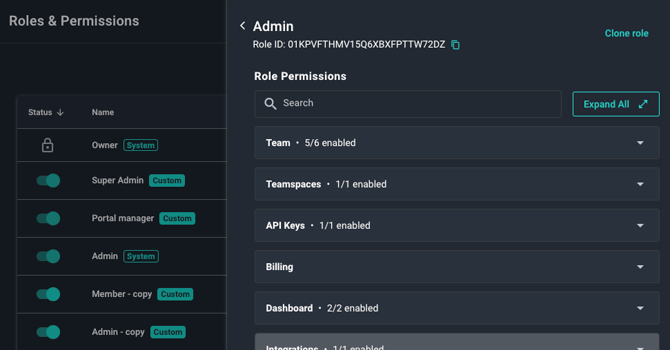
The permissions panel appears when a role is selected. It provides a full list of permissions and their settings.
Permission scope: Full, None, or Own
Many permissions are all (Full) or nothing (None), but some permissions are limited (Own). The Own setting limits the permission in one of two ways:
-
Own as "user only": For Notifications and API keys, the user can control only the notifications associated with their user profile and manage API keys that they have created.
-
Own as "teamspace only": For Package settings and View teamspaces, the user can view and manage only the packages and portals that are associated with the teamspace(s) the user belongs to or that aren't associated with any teamspace.
Teamspaces
You can use teamspaces to manage users, security, and access. Teamspaces provide a way to create groups within a team. For example, a Member assigned to a teamspace can view and download non-teamspace content and any content for teamspaces they belong to, but they can’t view or download content associated with teamspaces they don’t belong to. For more information, see How to control access with MASV teamspaces.
Permission table
The table below provides a full list of permissions and the settings associated with each system role.
Table legend:
✔️ Full permission
X None; No permission
Own Scoped to user and/or limited to their associated teamspace (if applicable)
|
Permission |
Description |
Owner |
Admin |
Member |
Contributor |
|
Team |
|||||
|
Notifications |
Manage team and third-party notification settings. |
✔️ |
✔️ |
Own (User) |
X |
|
Roles |
Manage roles: Create, edit, and delete roles. |
✔️ |
X |
X |
X |
|
Team settings |
Manage team general settings, security, and branding. |
✔️ |
✔️ |
X |
X |
|
User management |
Manage users: Add and remove users; assign roles. |
✔️ |
✔️ |
X |
X |
|
Package settings |
Manage package settings, including expiry and download limit. Can view Transfer History > Send. |
✔️ |
✔️ |
Own (Teamspace) |
X |
|
Send packages |
Upload packages via the Send page. |
✔️ |
✔️ |
✔️ |
X |
|
Teamspaces |
|||||
|
Manage teamspaces |
Create, edit, and delete teamspaces and manage membership. |
✔️ |
✔️ |
X |
X |
|
View teamspaces |
View teamspaces and associated portals and packages. |
✔️ |
✔️ |
Own (Teamspace) |
Own (Teamspace) |
|
API |
|||||
|
Manage API keys |
Create, edit, and delete API keys. |
✔️ |
Own (User) |
X |
X |
|
Billing |
|||||
|
Manage billing |
Manage payment and account information. |
✔️ |
X |
X |
X |
|
View billing |
View billing information and export billing reports. |
✔️ |
X |
X |
X |
|
Dashboard |
|||||
|
Live upload tracking |
Monitor and manage incoming uploads. |
✔️ |
✔️ |
✔️ |
X |
|
Package activity feed |
Monitor and search package status. |
✔️ |
✔️ |
X |
X |
|
Usage report |
View and export usage reports for data and storage. |
✔️ |
✔️ |
X |
X |
|
Integrations |
|||||
|
Manage integrations |
Add, edit, and delete cloud and on-prem connections. |
✔️ |
✔️ |
X |
X |
|
Metadata forms |
|||||
|
Manage metadata forms |
Create, edit, and delete metadata forms. |
✔️ |
✔️ |
X |
X |
|
Portals |
|||||
|
Download portal packages |
Download portal packages. User must authenticate. |
✔️ |
✔️ |
✔️ |
X |
|
Manage portals |
Create, delete, and edit portals. |
✔️ |
✔️ |
X |
X |
|
Manage portal packages |
Manage portal package settings, including expiry and download limit. |
✔️ |
✔️ |
✔️ |
X |
|
Upload portal packages |
Upload packages to portals. User must authenticate. |
✔️ |
✔️ |
✔️ |
✔️ |
|
View received packages |
View portal packages in Transfer History > Received tab. |
✔️ |
✔️ |
✔️ |
X |
|
View portals |
View portals list on the Request Files page. |
✔️ |
✔️ |
✔️ |
X |
|
SSO |
|||||
|
Single sign-on |
Manage single sign-on configurations. |
✔️ |
✔️ |
X |
X |
|
Tags |
|||||
|
Manage tags |
Create, edit, and delete tags. |
✔️ |
✔️ |
X |
X |
|
View tags |
View and apply existing tags. |
✔️ |
✔️ |
✔️ |
X |
Note: Some legacy accounts have portal permissions associated with private portals (functionality has been replaced with portal authentication and teamspaces). For more information, see Portal security.
Roles and single sign-on (SSO)
If you have single sign-on (SSO) enabled for MASV, you can assign a MASV role to users via identity providers that support Security Assertion Markup Language (SAML). MASV provides just-in-time (JIT) provisioning that allows users to sign in and access MASV according to the assigned role. For more information, see How to set up single sign-on (SSO) in MASV.
To find and copy a MASV role ID for SSO configuration
- As a team Owner or a user with Role permissions, open the MASV Web App.
- From the sidebar on the left, select Features & Settings > Roles & Permissions.
- On the Roles & Permissions page, in the Actions column, select the menu icon that corresponds to the row for the role that you want to select.
- From the menu select Copy role ID.
Assign and manage roles
Team Owners and users with the Roles permission can assign roles to users when they are invited to the team via email or by configuring the SSO to assign a role. Otherwise users are assigned the default role.
The Roles & Permissions page allows all Owners to do the following:
- View a list of system roles.
- View how many users are assigned to each role.
- Open a list of users assigned to a specific role.
- Reassign users to a different role.
- View the permissions associated with a role.
- Copy a system role ID and use it to configure your SSO identity provider.
- Specify a default role (assigned if no role is selected when a user is invited to the team via a shareable link or if a role isn’t specified in the SSO configuration).
- Toggle roles on or off as needed.
If custom roles are enabled for your account, you can also do the following:
- View a list that includes system roles and custom roles.
- Add a new role.
- Clone an existing role as the basis for a new custom role.
- Copy a custom role ID and use it to configure your SSO identity provider.
- Edit permissions for custom roles.
- Delete a custom role.
For information about managing users and assigning roles when inviting new users to your team, see How to add, remove, and manage users in a MASV Team.
To view the Roles & Permissions page
- As a team Owner or a user with Roles permission, open the MASV Web App.
- From the sidebar on the left, select Features & Settings > Roles & Permissions.
To assign a role when adding a new user
- Do any of the following:
To assign or change the role of an existing user via User Management
- As a team Owner, Admin, or a user with User management permission, open the MASV Web App.
- From the sidebar on the left, select Features & Settings > User Management.
- On the User Management page, in the Role column, select a role for the user from the dropdown menu. The role selected now displays in the Role column.
To reassign one or more users to a different role
- As a team Owner or a user with Roles permission, open the MASV Web App.
- From the sidebar on the left, select Features & Settings > Roles & Permissions.
- On the Roles & Permissions page, in the Actions column, select the menu icon that corresponds to the row for the role that you want to select.
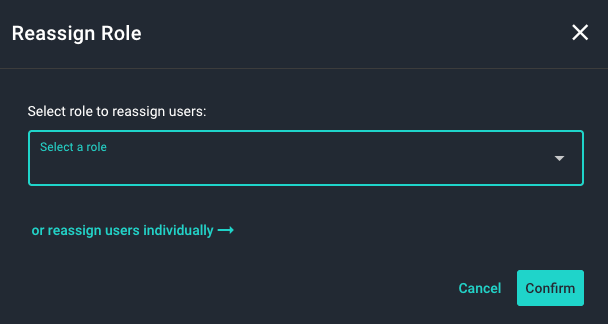
- From the menu select Reassign Role.
- Do one of the following:
- To reassign all users from the current role to a different role, select a new role from the Select a role menu, and select Confirm.
- To reassign users individually, select the or reassign users individually link and on the User Management page, select roles for each user from the Role column.
To change the default role
- As a team Owner or a user with Roles permission, open the MASV Web App.
- From the sidebar on the left, select Features & Settings > Roles & Permissions.
- On the Roles & Permissions page, in the Actions column, select the menu icon that corresponds to the row for the role that you want to select.
- From the menu select Set as default role. In the Default column, a check mark appears for that role.
To view which users are assigned to a role
- As a team Owner or a user with Roles permission, open the MASV Web App.
- From the sidebar on the left, select Features & Settings > Roles & Permissions.
- On the Roles & Permissions page, in the Actions column, select the menu icon that corresponds to the row for the role that you want to select.
- From the menu select View Users. The User Management page appears with a list of the users currently assigned to the role.
- If you want to change the role for any of the users, select a new role from the dropdown menu in the Role column.
To toggle roles on or off
- As a team Owner or a user with Roles permission, open the MASV Web App.
- From the sidebar on the left, select Features & Settings > Roles & Permissions.
- On the Roles & Permissions page, in the Status column, select the toggle for an empty role that you want to turn on or off.
Create and manage custom roles
If you are a team Owner with custom roles enabled for your account, you can create and manage custom roles. When creating a custom role, you can start from scratch (no permissions) and add the permissions you want or you can clone a system role or existing custom role and change only the permissions required for the new role. You can edit or delete custom roles as needed. If you want to designate another user to manage custom roles, you can create a custom role with the Roles permission enabled.
To create a custom role
- As a team Owner or a user with Roles permission, open the MASV Web App.
- From the sidebar on the left, select Features & Settings > Roles & Permissions.
- On the Roles & Permissions page, do one of the following:
- Select the Actions menu for the role whose permissions you want to clone, and from the dropdown menu, select Clone role. In the permissions panel, type a unique name and description for the cloned role and in the Role permissions area, modify any of the permission settings, and select Save.
- Select the Add role button, and in the Create role window, type a name and description for the new role. Select Confirm, in the permissions panel, set the permissions you want in the Role permissions area, and select Save.
The new role appears on the Roles & Permissions page.
Note: On the permissions panel, you can select the Expand All button to show all permissions. You can also search permissions by typing a search term into the Search box.
Tip: You can also clone a role by selecting the Clone role button on the permissions panel.
To edit a custom role
- As a team Owner or a user with Roles permission, open the MASV Web App.
- From the sidebar on the left, select Features & Settings > Roles & Permissions.
- On the Roles & Permissions page, do one of the following:
- Select a custom role to open the permissions panel.
- Select the Actions menu for the role you want to edit, and from the dropdown menu, select Edit. The permissions panel opens.
- In the permissions panel, do any of the following:
- Edit the Name or Description.
- In the Role permissions area, modify any of the permission settings.
To delete a custom role
- As a team Owner or a user with Roles permission, open the MASV Web App.
- From the sidebar on the left, select Features & Settings > Roles & Permissions.
- On the Roles & Permissions page, in the Actions column, select the menu icon for the role that you want to delete, and from the dropdown menu select Delete.
- Do one of the following:
- If no users are currently assigned to the role, in the Delete role window, select Delete.
- If there are users assigned to the role, do one of the following:
- Choose Select a role, select a role from the menu, and select Reassign & delete role.
- Select the or reassign users individually link and on the User Management page, select roles for each user from the Role column. Return to the Roles & Permissions page and delete the empty role.
Examples of custom role permission settings
The following table provides guidance on how to create custom roles for the example roles described in Custom roles.
| To create | Do the following |
| Portal manager role | Clone the Member role, and set Portals > Manage portals permission to Full. |
| Project manager | Clone the Admin role, and set Billing > View billing permission to Full. |
| Super Admin | Clone the Owner role. |