---
title: Connect MASV with Postlab Drive
description: Simply enable the MASV integration in Postlab and copy/paste your team key into MASV and you can start receiving your Portal uploads directly into Postlab.
---
[Skip to content](https://help.massive.io/en/upload-to-postlab-drive-with-masv#main-content)
[](https://massive.io/)
- [Home](https://help.massive.io/en)
- [Products](https://massive.io/product/)
- [Pricing](https://massive.io/pricing/)
- [Blog](https://massive.io/blog/)
- [Company](https://massive.io/about-us/)
Open main navigation
Close main navigation
- [Home](https://help.massive.io/en)
- [Products](https://massive.io/product/)
- [Pricing](https://massive.io/pricing/)
- [Blog](https://massive.io/blog/)
- [Company](https://massive.io/about-us/)
How can we help?
- There are no suggestions because the search field is empty.
1. [Help Center - MASV](https://help.massive.io/en?hsLang=en)
2. [Apps & Integrations](https://help.massive.io/en/apps-integrations?hsLang=en)
3. [Cloud integrations](https://help.massive.io/en/apps-integrations?hsLang=en#cloud-integrations)
# Connect MASV with Postlab Drive
## Integrate Postlab with MASV to simplify delivery to storage
### Overview
You can connect MASV with Postlab to simplify delivery to your Postlab storage by taking advantage of MASV Portals. Getting started is a snap - simply enable the MASV integration in Postlab and copy/paste your team key into MASV.
#### To connect MASV with Postlab
1. Open the Postlab app and open the **Preferences** panel.
2. Navigate to **Integrations** and select **MASV.**
3. Copy the **key** from the team you wish to connect to your MASV Portal(s).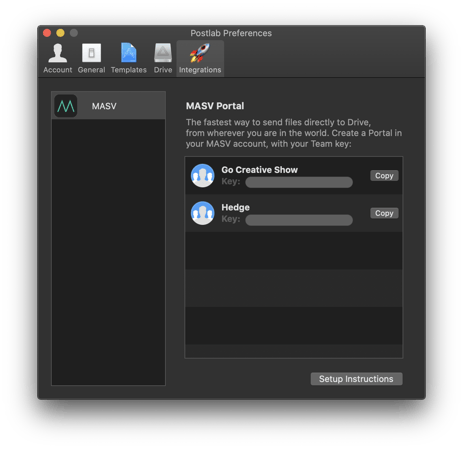
4. Sign in to the **MASV Admin Console** (formerly MASV Web App) and from the sidebar on the left, select **Integrations**.
5. On the **Integrations** page, select the **Available Integrations** tab.
6. Select **Postlab**.
7. In the **Add Integration window**, type a meaningful name in the **Connection Name** field.
8. In the **Team Key** field, paste the key you copied from Postlab.
9. Select **Connect** to close the Add Integration window and save the connection.
10. Select the **My Integrations** tab and verify that the Postlab integration is listed and that the **Status** column indicates **OK**.
That’s it! You can now:
- [Connect integrations with MASV Portals](https://help.massive.io/en/how-to-use-a-portal-to-send-files-to-integrations?hsLang=en)
- [Get started with MASV](https://help.massive.io/en/get-started-with-masv?hsLang=en)
- [Send and request files](https://help.massive.io/en/send-and-request-files?hsLang=en#main-content)
- [Send files](https://help.massive.io/en/send-and-request-files?hsLang=en#send-files)
- [Request files with portals](https://help.massive.io/en/send-and-request-files?hsLang=en#request-files-with-portals)
- [MASV Studio](https://help.massive.io/en/send-and-request-files?hsLang=en#masv-studio)
- [Advanced settings](https://help.massive.io/en/send-and-request-files?hsLang=en#advanced-settings)
- [Apps & Integrations](https://help.massive.io/en/apps-integrations?hsLang=en#main-content)
- [Working with integrations](https://help.massive.io/en/apps-integrations?hsLang=en#working-with-integrations)
- [Cloud integrations](https://help.massive.io/en/apps-integrations?hsLang=en#cloud-integrations)
- [On-premises and cloud storage devices](https://help.massive.io/en/apps-integrations?hsLang=en#on-premises-and-cloud-storage-devices)
- [Asset management & collaboration](https://help.massive.io/en/apps-integrations?hsLang=en#asset-management-collaboration)
- [Teams and user management](https://help.massive.io/en/teams-and-user-management?hsLang=en#main-content)
- [Teams](https://help.massive.io/en/teams-and-user-management?hsLang=en#teams)
- [Roles & Teamspaces](https://help.massive.io/en/teams-and-user-management?hsLang=en#roles-teamspaces)
- [Single Sign-On (SSO)](https://help.massive.io/en/teams-and-user-management?hsLang=en#single-sign-on-sso)
- [Manage file transfers](https://help.massive.io/en/manage-file-transfers?hsLang=en#main-content)
- [Transfer History & Dashboard](https://help.massive.io/en/manage-file-transfers?hsLang=en#transfer-history-dashboard)
- [Notifications](https://help.massive.io/en/manage-file-transfers?hsLang=en#notifications)
- [Custom Metadata](https://help.massive.io/en/manage-file-transfers?hsLang=en#custom-metadata)
- [Account and billing](https://help.massive.io/en/account-and-billing?hsLang=en#main-content)
- [Account](https://help.massive.io/en/account-and-billing?hsLang=en#account)
- [Billing](https://help.massive.io/en/account-and-billing?hsLang=en#billing)
- [Extended Storage](https://help.massive.io/en/account-and-billing?hsLang=en#extended-storage)
- [FAQs](https://help.massive.io/en/faqs?hsLang=en)
- [Releases](https://help.massive.io/en/releases?hsLang=en)
- [MASV Studio](https://help.massive.io/en/masv-studio?hsLang=en)
[](https://massive.io)
#### MASV Help Center
**[MASV Service Status](https://masv.statuspage.io/)**
Copyright © 2026, MASV