
MASV lets you preview common image, video, and other file types before you send them via the MASV Web App, a MASV Portal page, or the MASV Desktop App. Previews provide an easy way to do a last check to confirm that you’re uploading the expected files.
Desktop note: Currently previews are available in the beta version of the Desktop App (MASV Desktop Beta App).
Supported file formats
You can preview the following file formats in MASV:
|
File type category |
MASV Web App & Portals |
MASV Desktop App |
|
Image |
APNG AVIF BMP GIF ICO JPEG, JPG PNG SVG WEBP |
APNG AVIF BMP, DIB GIF JPEG, JPG, JPE, JFIF PNG SGI ICO WEBP |
|
Video |
MP4 WEBM X-M4V Quicktime |
MP4 (MP4V, MPG4, M4V) *Some video files include metadata that block the preview. WEBM |
|
Audio |
AAC, ADTS FLAC MPEG, MPGA, MP3, M3A OGG, OGA, OPUS WAV, *WAV WEBM, WEBA |
|
|
Other |
|
Note: Additional formats might be supported according to your operating system or browser.
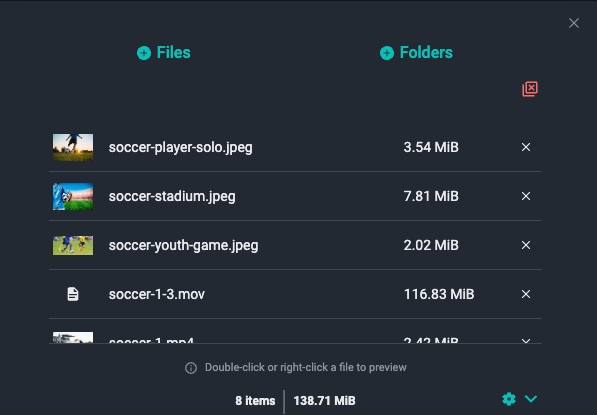
When no preview is available, a simple file icon  displays instead of a thumbnail.
Browser versus desktop
There are a number of differences between how the Preview works in the MASV Web App and MASV Portal pages (browser-based) compared to the MASV Desktop App (preview built into the application). Differences include:
- Supported files
- Ability to preview files nested in folders (not available in the MASV Desktop App)
- Preview window options (playback controls, image zooming, navigation)
Preview files before uploading in the MASV Web App or a MASV Portal
After you add files for upload in the MASV Web App or a MASV Portal page, you can choose to preview supported files, including files that are in folders.
To preview files in the MASV Web App or a MASV Portal
- Open the MASV Web App or a MASV Portal page.
- Drag the files you want to send into the Drag Files/Folders Here area of the Send card or portal.
- Do one of the following:
- Select a thumbnail to view a specific file.
- Select Preview below the file list to open the Preview Files window, and select a thumbnail. Only supported file types display thumbnails, and a small play icon displays in the upper right corner for video files.
- A larger preview window opens and displays the selected image file or video. For video files, do any of the following:
-
- Select the Maximize icon
 in the lower right corner to view the video in fullscreen mode. Select the Minimize icon
  to return to the standard preview.
 - Select the Play button
 to play the video clip.
 - Select the Volume button to turn audio on or off or use the associated slider to adjust the volume level.
- Navigate to a specific timecode in the video using the scrubber on the seek bar that appears at the bottom of the video.
- Select the More Options button to Download, change Playback speed, or display the video as Picture in Picture.
- Select the Maximize icon
- To close the preview window, click anywhere outside the preview window.
- Do one of the following:
- To preview another file, select a thumbnail from the Preview Files window.
- To close the preview, select the Close button
 in the upper right corner of the Preview Files window.
Note: If you embed a MASV Portal on a website, preview functionality is included.
Preview files before uploading in the MASV Desktop App
After you add files for upload in the MASV Desktop App, you can choose to preview supported files that aren’t nested in folders.
To preview files in the MASV Desktop App
- Open the MASV Desktop App.
- Select Send Files or Send to Portal, and drag the files you want into the upload window.
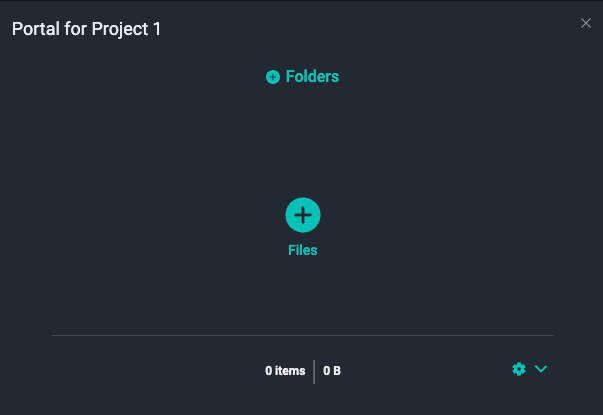 Double-click any of the files that display a thumbnail to open the preview window. You cannot preview files in folders.
 In the preview window, do any of the following:
- Select Next or Previous to select another supported file.
- Video: Select the Maximize icon
 in the lower right corner to view the video in fullscreen mode. Select the Minimize icon
  to return to the standard preview.
 - Video: Select the Play button
 to play the video clip.
 - Video: Select the Volume button to turn audio on or off or use the associated slider to adjust the volume level.
- Image: Select the Zoom in
 , Zoom out
  , or 100%
  button.
 - PDF: Scroll to review the document.
- To close the preview window, select the Close button
 in the upper right corner.
Note: Seeking within a video or audio file using the scrubber at the bottom of the preview window is not available at this time.