---
title: How to use the MASV Dashboard
description: Get a snapshot of your MASV Team, account activity, and usage
---
[Skip to content](https://help.massive.io/en/how-to-use-the-masv-dashboard#main-content)
[](https://massive.io/)
- [Home](https://help.massive.io/en)
- [Products](https://massive.io/product/)
- [Pricing](https://massive.io/pricing/)
- [Blog](https://massive.io/blog/)
- [Company](https://massive.io/about-us/)
Open main navigation
Close main navigation
- [Home](https://help.massive.io/en)
- [Products](https://massive.io/product/)
- [Pricing](https://massive.io/pricing/)
- [Blog](https://massive.io/blog/)
- [Company](https://massive.io/about-us/)
How can we help?
- There are no suggestions because the search field is empty.
1. [Help Center - MASV](https://help.massive.io/en?hsLang=en)
2. [Manage file transfers](https://help.massive.io/en/manage-file-transfers?hsLang=en)
3. [Transfer History & Dashboard](https://help.massive.io/en/manage-file-transfers?hsLang=en#transfer-history-dashboard)
# How to use the MASV Dashboard
## Get a snapshot of your MASV Team, account activity, and usage
The MASV Dashboard provides Owners and Admins ([roles](https://help.massive.io/en/what-are-the-permissions-for-owner-admins-and-members-of-your-team?hsLang=en)) with an overview of a Team, including package status and activity, Team members, teamspaces, and more. You can review total data transferred and extended storage usage. You can review a chart of your daily Transfer Usage and Storage Usage, selecting the date range you want and exporting the data to a .CSV file.
There are three tabs available from the MASV Dashboard:
- **Usage Report**: This is the default tab; available for all teams.
- **Package Activity Feed**: Provides a breakdown of the transfer process for each package, from start to finish, including any errors. For more information, see [How to monitor packages with MASV Package Activity Feed](https://help.massive.io/en/how-to-monitor-packages-with-masv-package-activity-feed?hsLang=en). Available for all teams.
- **Live Upload Tracking**: Lets you track the progress of incoming uploads, regardless of how or where a transfer is initiated – portal in browser, MASV Studio (formerly MASV Desktop App), or MASV Engine (formerly MASV Agent). For more information, see [Monitor upload progress with MASV Live Upload Tracking](https://help.massive.io/en/monitor-upload-progress-with-masv-live-upload-tracking-enterprise?hsLang=en). Enterprise feature.
You can also initiate a [file request](https://help.massive.io/en/how-do-i-use-masv-to-request-large-files?hsLang=en) or [send files](https://help.massive.io/en/how-to-send-files-using-masv?hsLang=en) from the Dashboard.
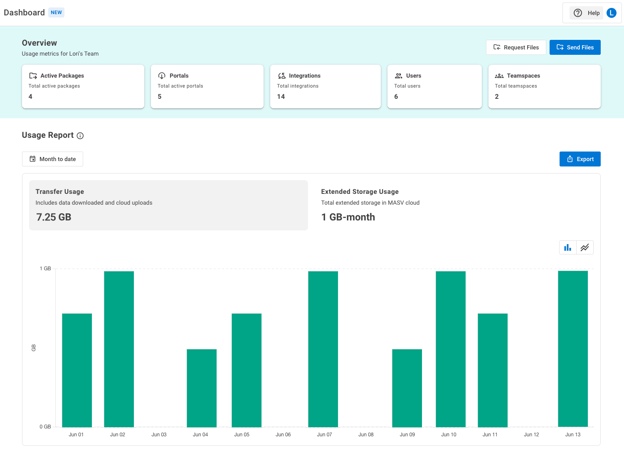
#### To view the MASV Dashboard
1. In the **MASV Admin Console** (formerly MASV Web App), as Team Owner or Admin, select a Team from the menu at the top of the sidebar on the left.
2. In the sidebar, select **Dashboard**.
### Dashboard Overview
You can find the following information in the **Overview** area the MASV Dashboard:
- **Active Packages**: The total number of uploaded packages that are currently stored in the MASV Cloud. This number corresponds to active packages on the **Sent** and **Received** tabs of the **Transfer History** page.
**Tip**: To find the corresponding active packages in the **Transfer History** quickly, you can use the filter to show active packages, including any set to **Unlimited** storage.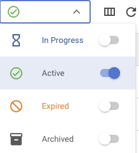
**Tip**: To see if a package has been downloaded, scroll across to the **Downloaded** column on the **Sent** or **Received** tabs of the **Transfer History** page.
- **Portals**: The total number of active [Portals](https://help.massive.io/en/how-do-i-create-a-portal?hsLang=en) (as indicated on the **Request Files with Portals** page, **Enabled** column).
- **Integrations**: The total number of [integrations](https://help.massive.io/en/what-is-masv-cloud-integrations?hsLang=en) that the Team uses, such as Amazon S3, Wasabi, Frame.io, etc.(as indicated on the **My Integrations** tab of the **Cloud Integrations** page).
- **Users**: The total number of users in the Team (as indicated on the **Features & Settings** \> **User Management** page).
- **Teamspaces**: The total number of [Teamspaces](https://help.massive.io/en/what-is-a-masv-teamspace?hsLang=en). This number corresponds to the groups indicated on the **Features & Settings** \> **Teamspaces** page.
### Dashboard Usage Report
You can find the following information in the **Usage Report** area of the **Dashboard.**
- **Transfer Usage**: This is the total amount of data transferred during the period selected in the date picker, including all downloads and transfers to cloud locations. The number is calculated in GiB and updated within minutes or hours, depending on the transfer endpoint.
- **Extended Storage Usage**: This is the total amount of storage used on the MASV Cloud for the period selected in the date picker, beyond any days of free storage. The amount is calculated daily by dividing the total GiB of data stored hourly by the number of hours in the month.
#### To change the date range and chart type.
1. On the **Dashboard** page, select the date picker in the **Usage Report** area. By default, the date range is set to **Month to date**.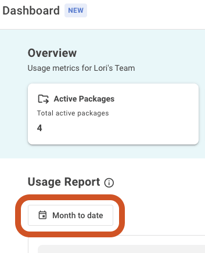
2. From the date picker, select a preset date range from the menu or select **Custom Dates** and choose the start and end dates from the calendars. The range is limited to the last 90 days.
3. The chart updates to display the date range selected.
4. To switch between a bar chart or line chart display, select the corresponding button above the chart. 
#### To export Transfer Usage and Storage Usage data
1. On the **Dashboard** page, select the date picker in the **Usage Report** area.
2. Select the date range that you want to export.
3. Select the **Export** button. A .csv file is exported to your downloads folder. The report includes only the dates that have either **Transfer Usage**, **Extended Storage Usage**, or both. Amounts are expressed in bytes.
**Note**: You can see how your usage and storage relates to your month-to-date bill by visiting your **Billing** page (**Features & Settings** \> **Billing**).
- [Get started with MASV](https://help.massive.io/en/get-started-with-masv?hsLang=en)
- [Send and request files](https://help.massive.io/en/send-and-request-files?hsLang=en#main-content)
- [Send files](https://help.massive.io/en/send-and-request-files?hsLang=en#send-files)
- [Request files with portals](https://help.massive.io/en/send-and-request-files?hsLang=en#request-files-with-portals)
- [MASV Studio](https://help.massive.io/en/send-and-request-files?hsLang=en#masv-studio)
- [Advanced settings](https://help.massive.io/en/send-and-request-files?hsLang=en#advanced-settings)
- [Apps & Integrations](https://help.massive.io/en/apps-integrations?hsLang=en#main-content)
- [Working with integrations](https://help.massive.io/en/apps-integrations?hsLang=en#working-with-integrations)
- [Cloud integrations](https://help.massive.io/en/apps-integrations?hsLang=en#cloud-integrations)
- [On-premises and cloud storage devices](https://help.massive.io/en/apps-integrations?hsLang=en#on-premises-and-cloud-storage-devices)
- [Asset management & collaboration](https://help.massive.io/en/apps-integrations?hsLang=en#asset-management-collaboration)
- [Teams and user management](https://help.massive.io/en/teams-and-user-management?hsLang=en#main-content)
- [Teams](https://help.massive.io/en/teams-and-user-management?hsLang=en#teams)
- [Roles & Teamspaces](https://help.massive.io/en/teams-and-user-management?hsLang=en#roles-teamspaces)
- [Single Sign-On (SSO)](https://help.massive.io/en/teams-and-user-management?hsLang=en#single-sign-on-sso)
- [Manage file transfers](https://help.massive.io/en/manage-file-transfers?hsLang=en#main-content)
- [Transfer History & Dashboard](https://help.massive.io/en/manage-file-transfers?hsLang=en#transfer-history-dashboard)
- [Notifications](https://help.massive.io/en/manage-file-transfers?hsLang=en#notifications)
- [Custom Metadata](https://help.massive.io/en/manage-file-transfers?hsLang=en#custom-metadata)
- [Account and billing](https://help.massive.io/en/account-and-billing?hsLang=en#main-content)
- [Account](https://help.massive.io/en/account-and-billing?hsLang=en#account)
- [Billing](https://help.massive.io/en/account-and-billing?hsLang=en#billing)
- [Extended Storage](https://help.massive.io/en/account-and-billing?hsLang=en#extended-storage)
- [FAQs](https://help.massive.io/en/faqs?hsLang=en)
- [Releases](https://help.massive.io/en/releases?hsLang=en)
- [MASV Studio](https://help.massive.io/en/masv-studio?hsLang=en)
[](https://massive.io)
#### MASV Help Center
**[MASV Service Status](https://masv.statuspage.io/)**
Copyright © 2026, MASV