---
title: How to set download filters in the MASV Desktop App
description: Download only the files you want by using filters in the MASV Desktop App
---
[Skip to content](https://help.massive.io/en/how-to-set-download-filters-in-the-masv-desktop-app#main-content)
[](https://massive.io/)
- [Home](https://help.massive.io/en)
- [Products](https://massive.io/product/)
- [Pricing](https://massive.io/pricing/)
- [Blog](https://massive.io/blog/)
- [Company](https://massive.io/about-us/)
Open main navigation
Close main navigation
- [Home](https://help.massive.io/en)
- [Products](https://massive.io/product/)
- [Pricing](https://massive.io/pricing/)
- [Blog](https://massive.io/blog/)
- [Company](https://massive.io/about-us/)
How can we help?
- There are no suggestions because the search field is empty.
1. [Help Center - MASV](https://help.massive.io/en?hsLang=en)
2. [MASV Desktop App](https://help.massive.io/en/masv-desktop-app?hsLang=en)
# How to set download filters in the MASV Desktop App
## Download only the files you want by using filters
**Note**: This feature is currently available in the **MASV Desktop Beta App** only.
You can use **Download filters** in the MASV Desktop App to control which files in a package are downloaded by setting file criteria in an **Allow list** or **Ignore list**. For example, you can filter by file type, file name, or use a [glob pattern](https://code.visualstudio.com/docs/editor/glob-patterns).
Use cases:
- **Compatibility**: Filter out system files that might cause issues on the receiving system.
- **Security**: Block suspicious file types.
- **Save** on destination storage space and download usage: Download only the files you need for your workflow.
**Note**: The **Ignore list** is applied before the **Allow list** if you specify glob patterns for both lists.
**Important**: Download filters apply globally to all downloads executed via the MASV Desktop App, including automated downloads. If you run multiple projects and watch folders, ensure that the filters you set are appropriate for all projects.
#### To apply download filters in the MASV Desktop App
1. In the **MASV Desktop Beta App**, select the **User Profile** icon in the upper right corner of the app window, and select **Settings** from the menu.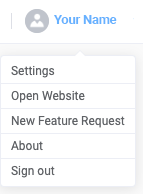
2. In the **Settings** window, select the **Transfers** tab on the left.
3. In the **Download filters** area, select the **Enable download filters** checkbox.
4. Do any of the following:
1. **Allow list**: To limit downloads to specified files only, enter the file names or file types, using [glob patterns](https://code.visualstudio.com/docs/editor/glob-patterns) to set wildcards or specify partial file names or types.
2. **Ignore list**: To download all files except for specified files, enter the file names or file types, using [glob patterns](https://code.visualstudio.com/docs/editor/glob-patterns) to set wildcards or specify partial file names or types.
5. Close the **Settings** window to apply the changes.
**Tip**: Download a test package to ensure your settings produce the expected result. This is especially helpful when you use glob patterns or have criteria for both the **Allow list** and **Ignore list**.
#### To turn off or edit download filters in the MASV Desktop App
1. In the **MASV Desktop Beta App**, select the **User Profile** icon in the upper right corner of the app window, and select **Settings** from the menu.
2. In the **Settings** window, select the **Transfers** tab on the left.
3. In the **Download filters** area, do any of the following:
1. To turn off **Download filters**, clear the **Enable download filters** checkbox.
2. To edit your filters, add, change, or delete the criteria typed in the **Allow list** or **Ignore list**.
4. Close the Settings window to apply the changes.
- [Get started with MASV](https://help.massive.io/en/get-started-with-masv?hsLang=en)
- [Send and request files](https://help.massive.io/en/send-and-request-files?hsLang=en#main-content)
- [Send files](https://help.massive.io/en/send-and-request-files?hsLang=en#send-files)
- [Request files with portals](https://help.massive.io/en/send-and-request-files?hsLang=en#request-files-with-portals)
- [MASV Desktop App](https://help.massive.io/en/send-and-request-files?hsLang=en#masv-desktop-app)
- [Advanced settings](https://help.massive.io/en/send-and-request-files?hsLang=en#advanced-settings)
- [Apps & Integrations](https://help.massive.io/en/apps-integrations?hsLang=en#main-content)
- [Working with integrations](https://help.massive.io/en/apps-integrations?hsLang=en#working-with-integrations)
- [Cloud integrations](https://help.massive.io/en/apps-integrations?hsLang=en#cloud-integrations)
- [On-premises and cloud storage devices](https://help.massive.io/en/apps-integrations?hsLang=en#on-premises-and-cloud-storage-devices)
- [Asset management & collaboration](https://help.massive.io/en/apps-integrations?hsLang=en#asset-management-collaboration)
- [Teams and user management](https://help.massive.io/en/teams-and-user-management?hsLang=en#main-content)
- [Teams](https://help.massive.io/en/teams-and-user-management?hsLang=en#teams)
- [Roles & Teamspaces](https://help.massive.io/en/teams-and-user-management?hsLang=en#roles-teamspaces)
- [Single Sign-On (SSO)](https://help.massive.io/en/teams-and-user-management?hsLang=en#single-sign-on-sso)
- [Manage file transfers](https://help.massive.io/en/manage-file-transfers?hsLang=en#main-content)
- [Transfer History & Dashboard](https://help.massive.io/en/manage-file-transfers?hsLang=en#transfer-history-dashboard)
- [Notifications](https://help.massive.io/en/manage-file-transfers?hsLang=en#notifications)
- [Custom Metadata](https://help.massive.io/en/manage-file-transfers?hsLang=en#custom-metadata)
- [Account and billing](https://help.massive.io/en/account-and-billing?hsLang=en#main-content)
- [Account](https://help.massive.io/en/account-and-billing?hsLang=en#account)
- [Billing](https://help.massive.io/en/account-and-billing?hsLang=en#billing)
- [Extended Storage](https://help.massive.io/en/account-and-billing?hsLang=en#extended-storage)
- [FAQs](https://help.massive.io/en/faqs?hsLang=en)
- [Releases](https://help.massive.io/en/releases?hsLang=en)
- [MASV Desktop App](https://help.massive.io/en/masv-desktop-app?hsLang=en)
[](https://massive.io)
#### MASV Help Center
**[MASV Service Status](https://masv.statuspage.io/)**
Copyright © 2026, MASV