---
title: How to send files with MASV Studio
description: In this article, we show how to use MASV Studio to send packages. Learn more!
---
[Skip to content](https://help.massive.io/en/how-to-send-a-package-through-masv-studio#main-content)
[](https://massive.io/)
- [Home](https://help.massive.io/en)
- [Products](https://massive.io/product/)
- [Pricing](https://massive.io/pricing/)
- [Blog](https://massive.io/blog/)
- [Company](https://massive.io/about-us/)
Open main navigation
Close main navigation
- [Home](https://help.massive.io/en)
- [Products](https://massive.io/product/)
- [Pricing](https://massive.io/pricing/)
- [Blog](https://massive.io/blog/)
- [Company](https://massive.io/about-us/)
How can we help?
- There are no suggestions because the search field is empty.
1. [Help Center - MASV](https://help.massive.io/en?hsLang=en)
2. [Send and request files](https://help.massive.io/en/send-and-request-files?hsLang=en)
3. [MASV Studio](https://help.massive.io/en/send-and-request-files?hsLang=en#masv-studio)
# How to send files with MASV Studio
## Transfer large files with MASV Studio
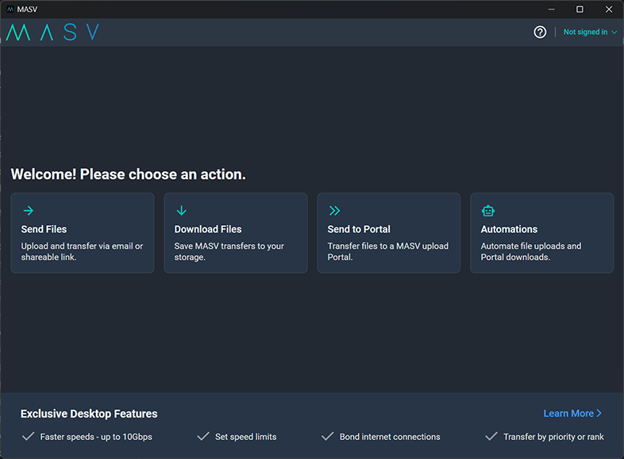
The MASV Studio (formerly MASV Desktop App) supports sending files and folders from your local computer or shared network drive. To send from cloud storage or packages already in MASV, use the MASV Admin Console (formerly MASV Web App).
💡You can also automate sending files. See [How to automate file transfers with MASV watch folders](https://help.massive.io/en/how-to-setup-masv-watch-folders?hsLang=en).
#### **To send files with MASV Studio**
1. Launch MASV Studio.
2. Do one of the following:
- To send to a recipient: Sign-in then select **Send Files**.
- To send to a Portal: Select **Send to Portal**, fill in the Portal’s URL, and select **Continue**. You don’t need to sign-in to send to a Portal.
3. Drag and drop your files and folders from your local computer or shared network drive in the file picker. Or you can select **+ Files** or **+ Folders**. You can [preview](https://help.massive.io/en/previewing-files?hsLang=en) files that aren't in folders.
4. Optionally fill in package options by expanding the gear icon:
- **Team**: Choose the team you want to send from.
- **Teamspace:** Select a Teamspace. Note: You need permission to access a Teamspace to choose it.
- **Download password**: Require recipients to also enter a password before downloading. You’ll need to send this password to your recipients yourself, MASV doesn’t send it for you. Also, MASV doesn’t remember this password so you need to remember it.
- **Package name**: Give your package a distinctive name. If you leave this empty, MASV names your package with your team and the current date and time.
- **Message**: Let your recipients know extra details about what you’re sending.
- **Tag**: Assign a keyword to this package. You can use this tag to filter and sort in **Transfer history** and keep track of billing. You can manage tags with **Tag manager**.
- **Download limit**: The maximum number of downloads per recipient. For recipients specified by email, this specifies how many times each email recipient can download a package. For shareable links, it specifies how many times the shareable link can be used to download the package. Remember that you pay for downloads, so you can use this option to limit how much you pay. The default is 3.
- **Storage duration**: Adjust the default storage duration. You can increase or decrease the number of days, or select **Enable unlimited storage**. The number of free days of storage depends on your plan.
**Note:** After files expire, the files are deleted from MASV storage and are no longer available for download. For security, privacy, and to minimize costs, MASV does not retain copies of expired files.
- **Priority**: Choose how important this transfer is. The Desktop app transfers higher priority packages before packages with lower priority. This option is available only if [**Transfer by Priority**](https://help.massive.io/en/how-do-i-transfer-by-priority?hsLang=en) is enabled in your **Settings**.
5. Choose how to send and notify your recipients:
- **Send as email**: Fill in the email addresses of your recipients.
- **Send as link**: Copy the link to the clipboard to share with your recipients however you want.
6. MASV shows the progress in the list of transfers. You can safely pause or even quit the application and resume later without losing progress.
7. If you selected **Send as link**, when the link is ready, in **Share download link**, copy the download link by selecting the clipboard icon. You can also open this link in a browser or copy it from the list of transfers.
- [Get started with MASV](https://help.massive.io/en/get-started-with-masv?hsLang=en)
- [Send and request files](https://help.massive.io/en/send-and-request-files?hsLang=en#main-content)
- [Send files](https://help.massive.io/en/send-and-request-files?hsLang=en#send-files)
- [Request files with portals](https://help.massive.io/en/send-and-request-files?hsLang=en#request-files-with-portals)
- [MASV Studio](https://help.massive.io/en/send-and-request-files?hsLang=en#masv-studio)
- [Advanced settings](https://help.massive.io/en/send-and-request-files?hsLang=en#advanced-settings)
- [Apps & Integrations](https://help.massive.io/en/apps-integrations?hsLang=en#main-content)
- [Working with integrations](https://help.massive.io/en/apps-integrations?hsLang=en#working-with-integrations)
- [Cloud integrations](https://help.massive.io/en/apps-integrations?hsLang=en#cloud-integrations)
- [On-premises and cloud storage devices](https://help.massive.io/en/apps-integrations?hsLang=en#on-premises-and-cloud-storage-devices)
- [Asset management & collaboration](https://help.massive.io/en/apps-integrations?hsLang=en#asset-management-collaboration)
- [Teams and user management](https://help.massive.io/en/teams-and-user-management?hsLang=en#main-content)
- [Teams](https://help.massive.io/en/teams-and-user-management?hsLang=en#teams)
- [Roles & Teamspaces](https://help.massive.io/en/teams-and-user-management?hsLang=en#roles-teamspaces)
- [Single Sign-On (SSO)](https://help.massive.io/en/teams-and-user-management?hsLang=en#single-sign-on-sso)
- [Manage file transfers](https://help.massive.io/en/manage-file-transfers?hsLang=en#main-content)
- [Transfer History & Dashboard](https://help.massive.io/en/manage-file-transfers?hsLang=en#transfer-history-dashboard)
- [Notifications](https://help.massive.io/en/manage-file-transfers?hsLang=en#notifications)
- [Custom Metadata](https://help.massive.io/en/manage-file-transfers?hsLang=en#custom-metadata)
- [Account and billing](https://help.massive.io/en/account-and-billing?hsLang=en#main-content)
- [Account](https://help.massive.io/en/account-and-billing?hsLang=en#account)
- [Billing](https://help.massive.io/en/account-and-billing?hsLang=en#billing)
- [Extended Storage](https://help.massive.io/en/account-and-billing?hsLang=en#extended-storage)
- [FAQs](https://help.massive.io/en/faqs?hsLang=en)
- [Releases](https://help.massive.io/en/releases?hsLang=en)
- [MASV Studio](https://help.massive.io/en/masv-studio?hsLang=en)
[](https://massive.io)
#### MASV Help Center
**[MASV Service Status](https://masv.statuspage.io/)**
Copyright © 2026, MASV