
Note: These instructions are for the following Beta and Standard versions:
-
MASV Studio Beta v2.11.99
-
MASV Studio version 2.11.0 (macOS and Windows)
*MASV Studio was previously called MASV Desktop App.
If you have been using MASV Studio Beta in order to take advantage of the latest features, you have the option to move to the MASV Studio (Standard version) when it makes the new features available. Please visit the Releases page for detailed release notes.
What you need to know
Moving from the Beta version to the Standard version of MASV Studio impacts the following:
- Transfer History (database): Not imported. Packages continue to be trackable from the MASV Admin Console (formerly MASV Web App), but the Transfer History in MASV Studio starts with a clean slate.
- Automations: Not imported. Set up the automations you need in the new version of MASV Studio.
- Settings: You can import settings, such as any scheduling or storage optimizations. Instructions are provided below. To find the location of the settings.yml file, with MASV Studio open, select Settings from the menu, and Debug from the sidebar. The settings.yml file is stored in the same location listed for the Database file (.masvbeta/settings.yml for the Beta; .masv/settings.yml for the Standard version).
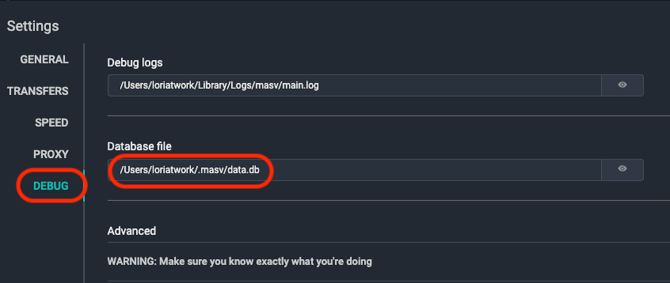
To update from MASV Studio Beta to MASV Studio (Standard)
- Install and run the latest version of MASV Studio.
- Quit MASV Studio.
- Quit MASV Studio Beta (if open).
- Copy your settings.yml file from .masvbeta to .masv. *Location information is detailed in the previous section.
- Open MASV Studio. Check to ensure your settings are as expected.
- When you have finished setting up the Standard version, you can uninstall MASV Studio Beta.
Warning: Avoid any duplicate transfers by ensuring that you have uninstalled the Beta version before enabling any automations in the Standard version of MASV Studio.