
Note: This feature is currently available in the MASV Desktop Beta App only.
You can use Download filters in the MASV Desktop App to control which files in a package are downloaded by setting file criteria in an Allow list or Ignore list. For example, you can filter by file type, file name, or use a glob pattern.
Use cases:
- Compatibility: Filter out system files that might cause issues on the receiving system.
- Security: Block suspicious file types.
- Save on destination storage space and download usage: Download only the files you need for your workflow.
Important: Download filters apply globally to all downloads executed via the MASV Desktop App, including automated downloads. If you run multiple projects and watch folders, ensure that the filters you set are appropriate for all projects.
To apply download filters in the MASV Desktop App
-
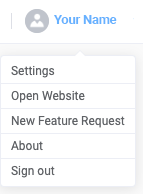
In the MASV Desktop Beta App, select the User Profile icon in the upper right corner of the app window, and select Settings from the menu.
- In the Settings window, select the Transfers tab on the left.
- In the Download filters area, select the Enable download filters checkbox.
- Do any of the following:
- Allow list: To limit downloads to specified files only, enter the file names or file types, using glob patterns to set wildcards or specify partial file names or types.
- Ignore list: To download all files except for specified files, enter the file names or file types, using glob patterns to set wildcards or specify partial file names or types.
- Close the Settings window to apply the changes.
Tip: Download a test package to ensure your settings produce the expected result. This is especially helpful when you use glob patterns or have criteria for both the Allow list and Ignore list.
To turn off or edit download filters in the MASV Desktop App
-
In the MASV Desktop Beta App, select the User Profile icon in the upper right corner of the app window, and select Settings from the menu.
- In the Settings window, select the Transfers tab on the left.
- In the Download filters area, do any of the following:
- To turn off Download filters, clear the Enable download filters checkbox.
- To edit your filters, add, change, or delete the criteria typed in the Allow list or Ignore list.
- Close the Settings window to apply the changes.