---
title: How to use custom metadata with integrations to dynamically route portal packages
description: Dynamically route Portal packages to the destination you want within an integration workflow
---
[Skip to content](https://help.massive.io/en/how-to-dynamically-route-packages-with-custom-metadata#main-content)
[](https://massive.io/)
- [Home](https://help.massive.io/en)
- [Products](https://massive.io/product/)
- [Pricing](https://massive.io/pricing/)
- [Blog](https://massive.io/blog/)
- [Company](https://massive.io/about-us/)
Open main navigation
Close main navigation
- [Home](https://help.massive.io/en)
- [Products](https://massive.io/product/)
- [Pricing](https://massive.io/pricing/)
- [Blog](https://massive.io/blog/)
- [Company](https://massive.io/about-us/)
How can we help?
- There are no suggestions because the search field is empty.
1. [Help Center - MASV](https://help.massive.io/en?hsLang=en)
2. [Apps & Integrations](https://help.massive.io/en/apps-integrations?hsLang=en)
3. [Working with integrations](https://help.massive.io/en/apps-integrations?hsLang=en#working-with-integrations)
# How to use custom metadata with integrations to dynamically route portal packages
## Dynamically route MASV Portal packages to the destination you want within an integration workflow
Delivering files to the right place is key to any workflow. By leveraging the metadata collected by a portal's Custom Form, MASV makes it possible to dynamically route packages to the destination you want for each integration associated with a portal. This means you can use a single portal with a single Custom Form to route packages to different locations based on the information the sender provides. For example, if you collect media for sporting events, you can use one MASV Portal to collect video footage for different sports, saving the files for each sport to a different storage destination within the selected integration.
The destination folder structure does not need to pre-exist – MASV can create the folders required based on what you define in your custom path.
### Overview of the process
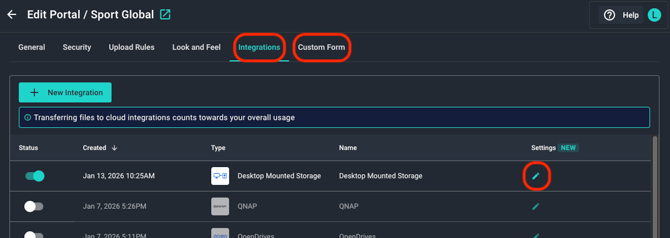
[Create a portal](https://help.massive.io/en/how-to-create-a-portal-in-masv?hsLang=en), and set the following customizations:
1. **Custom Form**: [Create a Custom Form](https://help.massive.io/en/designing-a-custom-metadata-form?hsLang=en) for the portal or associate an existing Custom Form (template). Include the fields you want to use for routing to a destination folder structure.
2. **Integrations**: Enable the [Integration(s) you want to use with the portal](https://help.massive.io/en/how-to-use-a-portal-to-send-files-to-integrations?hsLang=en).
3. **Settings** for the integration**:** The subdirectory path can include static and/or dynamic metadata information. The final destination is determined by:
1. The root folder specified for the integration (set when you added the integration).
2. Target Subdirectory: If a Target Subdirectory was set for the integration, it will be visible to the left of the **Subdirectory** box in the **Portal Integration Settings** window. If no Target Subdirectory is set, the custom path you set in the **Subdirectory** box is appended to the root folder.
3. **Portal Integration Settings**: Specified by what you type or select in the **Subdirectory** box. This is where you can include dynamic metadata elements and/or static elements.
4. By default, the **Package Name** (not visible in the **Portal Integration Settings** window) is inserted as the last folder in the path.
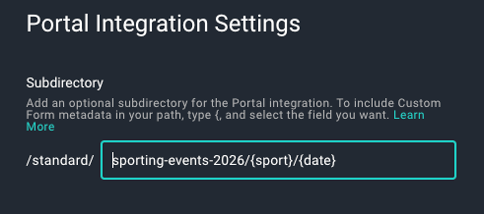
*In the path example above, there is a Target Subdirectory for the integration (****/standard****), a static path element (****sporting-events-2026****), and two dynamic custom metadata elements (****{sport}*** *and* ***{date}****). The root folder and default Package Name folder are not visible.*
### What type of metadata can be used in a custom path?
The following **Custom Form** metadata field types can be used in the custom path for your portal integration:
- **Date Picker**: The date the sender selects is formatted in the path as YYYY-MM-DD.
- **Dropdown Select**: The option the sender selects in the drop-down menu determines the path.
- **Number Field**: Sender can enter any number, so if there is a user error, your intended path is affected.
- **Radio Button**: The option the sender selects from the radio button list determines the path.
- **Package Name**: A text field used to provide a name for the package. See the section below for details.
**Note**: To appear as a path option in the **Portal Integration Settings** window, **Custom Form** metadata fields must be set as **Required** or include a **Default** option.
### How does Package Name affect the path?
With the default integration settings, if you choose **Package Name** for your custom path, the **Package Name** appears in the path twice. Why? Although **Package Name** is a supported field, it already has a role – to provide a name for the package folder. The name is user-defined or generated by MASV (portal name + date-time).
Some integrations (such as Amazon S3 and S3-compatible integrations) provide an option to exclude **Package Name** from being used for the package folder name (in the corresponding **Add Integration** or **Edit Integration** window, enable the **Parent Folder Options** checkbox).
So why use it for routing? As a text-based field, if you want users to type information that isn’t pre-defined (i.e. not suitable for a radio button or drop-down list), the **Package Name** field is an option.
#### To include custom metadata in the path for MASV Portal packages delivered to an integration
1. In the **MASV Web App**, select **Request Files with Portals** from the sidebar on the left.
2. From the **Actions** column, select the menu icon  for the portal you want to use, and select **Edit** from the context menu.
3. Select the **Integrations** tab, and from the **Settings** column, select the **Edit** icon for the integration you want to use. Note: Only active integrations can be edited (**Status** column toggle enabled).
4. In the **Portal Integration Settings** window, review the path in the **Subdirectory** box, and type any static path elements you want and type **{** (curly bracket) to view a drop-down list of valid custom metadata fields.
5. Select the metadata fields you want.
6. Verify that you have the elements you want in your path, and select **OK**.
7. Select the **Save** button in the lower-right corner of the **Edit Portal** page to apply the changes. 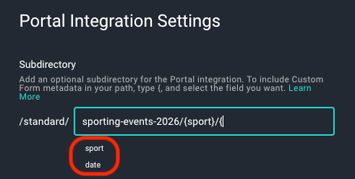
- [Get started with MASV](https://help.massive.io/en/get-started-with-masv?hsLang=en)
- [Send and request files](https://help.massive.io/en/send-and-request-files?hsLang=en#main-content)
- [Send files](https://help.massive.io/en/send-and-request-files?hsLang=en#send-files)
- [Request files with portals](https://help.massive.io/en/send-and-request-files?hsLang=en#request-files-with-portals)
- [MASV Desktop App](https://help.massive.io/en/send-and-request-files?hsLang=en#masv-desktop-app)
- [Advanced settings](https://help.massive.io/en/send-and-request-files?hsLang=en#advanced-settings)
- [Apps & Integrations](https://help.massive.io/en/apps-integrations?hsLang=en#main-content)
- [Working with integrations](https://help.massive.io/en/apps-integrations?hsLang=en#working-with-integrations)
- [Cloud integrations](https://help.massive.io/en/apps-integrations?hsLang=en#cloud-integrations)
- [On-premises and cloud storage devices](https://help.massive.io/en/apps-integrations?hsLang=en#on-premises-and-cloud-storage-devices)
- [Asset management & collaboration](https://help.massive.io/en/apps-integrations?hsLang=en#asset-management-collaboration)
- [Teams and user management](https://help.massive.io/en/teams-and-user-management?hsLang=en#main-content)
- [Teams](https://help.massive.io/en/teams-and-user-management?hsLang=en#teams)
- [Roles & Teamspaces](https://help.massive.io/en/teams-and-user-management?hsLang=en#roles-teamspaces)
- [Single Sign-On (SSO)](https://help.massive.io/en/teams-and-user-management?hsLang=en#single-sign-on-sso)
- [Manage file transfers](https://help.massive.io/en/manage-file-transfers?hsLang=en#main-content)
- [Transfer History & Dashboard](https://help.massive.io/en/manage-file-transfers?hsLang=en#transfer-history-dashboard)
- [Notifications](https://help.massive.io/en/manage-file-transfers?hsLang=en#notifications)
- [Custom Metadata](https://help.massive.io/en/manage-file-transfers?hsLang=en#custom-metadata)
- [Account and billing](https://help.massive.io/en/account-and-billing?hsLang=en#main-content)
- [Account](https://help.massive.io/en/account-and-billing?hsLang=en#account)
- [Billing](https://help.massive.io/en/account-and-billing?hsLang=en#billing)
- [Extended Storage](https://help.massive.io/en/account-and-billing?hsLang=en#extended-storage)
- [FAQs](https://help.massive.io/en/faqs?hsLang=en)
- [Releases](https://help.massive.io/en/releases?hsLang=en)
- [MASV Desktop App](https://help.massive.io/en/masv-desktop-app?hsLang=en)
[](https://massive.io)
#### MASV Help Center
**[MASV Service Status](https://masv.statuspage.io/)**
Copyright © 2026, MASV