---
title: How to connect MASV to Dropbox
description: In this article, we provide a step-by-step guide for integrating MASV with your Dropbox. Learn more!
---
[Skip to content](https://help.massive.io/en/how-to-connect-to-dropbox#main-content)
[](https://massive.io/)
- [Home](https://help.massive.io/en)
- [Products](https://massive.io/product/)
- [Pricing](https://massive.io/pricing/)
- [Blog](https://massive.io/blog/)
- [Company](https://massive.io/about-us/)
Open main navigation
Close main navigation
- [Home](https://help.massive.io/en)
- [Products](https://massive.io/product/)
- [Pricing](https://massive.io/pricing/)
- [Blog](https://massive.io/blog/)
- [Company](https://massive.io/about-us/)
How can we help?
- There are no suggestions because the search field is empty.
1. [Help Center - MASV](https://help.massive.io/en?hsLang=en)
2. [Apps & Integrations](https://help.massive.io/en/apps-integrations?hsLang=en)
3. [Cloud integrations](https://help.massive.io/en/apps-integrations?hsLang=en#cloud-integrations)
# How to connect MASV to Dropbox
## Step-by-step guide for integrating MASV with your Dropbox
You can connect MASV to Dropbox to transfer received files into Dropbox automatically. You can set up the connection in the MASV Admin Console (formerly MASV Web App).
#### To integrate MASV with Dropbox
1. In the **MASV Admin Console**, as team Owner, Admin, or Integration Manager ([role](https://help.massive.io/en/what-are-the-permissions-for-owner-admins-and-members-of-your-team?hsLang=en)), select **Integrations** from the sidebar on the left.
select **Integrations** from the sidebar on the left.
2. On the **Integrations** page, select the **Available Integrations** tab.
3. In the **Cloud Integrations** area, select **Dropbox**.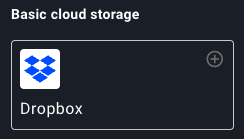
- **Tip**: You can also select **Dropbox** from the **Add Integration \> Add New** drop-down menu.
4. In the **Add Integration** window, type a meaningful name in the **Connection Name** box.
5. Select the **Authenticate** button to sign in to your Dropbox account and authenticate the integration.
6. (Optional) To set a target subdirectory for deliveries, expand **Folder Options**, and in the **Target Subdirectory** box, type a folder path destination.
7. Select **Connect**.
That's it! After authentication, select the **My Integrations** tab to confirm your new integration is available in the integrations list. You can now:
- [Connect integrations with MASV Portals](https://help.massive.io/en/how-to-use-a-portal-to-send-files-to-integrations?hsLang=en)
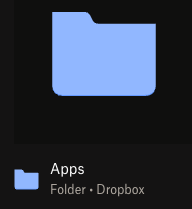
**Note**: Files and folders transferred to **Dropbox** are saved in the **Apps** folder. For more information about managing Dropbox folders, refer to the [Dropbox Help Center](https://help.dropbox.com/).
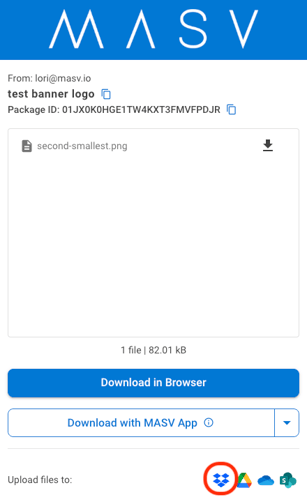
**Tip**: You can also deliver files to Dropbox by selecting the Dropbox option at the bottom of a MASV download page (received by email or shareable link). For more information, see [How to send large files to Dropbox with MASV](https://help.massive.io/en/send-large-files-to-dropbox-with-masv?hsLang=en).
- [Get started with MASV](https://help.massive.io/en/get-started-with-masv?hsLang=en)
- [Send and request files](https://help.massive.io/en/send-and-request-files?hsLang=en#main-content)
- [Send files](https://help.massive.io/en/send-and-request-files?hsLang=en#send-files)
- [Request files with portals](https://help.massive.io/en/send-and-request-files?hsLang=en#request-files-with-portals)
- [MASV Studio](https://help.massive.io/en/send-and-request-files?hsLang=en#masv-studio)
- [Advanced settings](https://help.massive.io/en/send-and-request-files?hsLang=en#advanced-settings)
- [Apps & Integrations](https://help.massive.io/en/apps-integrations?hsLang=en#main-content)
- [Working with integrations](https://help.massive.io/en/apps-integrations?hsLang=en#working-with-integrations)
- [Cloud integrations](https://help.massive.io/en/apps-integrations?hsLang=en#cloud-integrations)
- [On-premises and cloud storage devices](https://help.massive.io/en/apps-integrations?hsLang=en#on-premises-and-cloud-storage-devices)
- [Asset management & collaboration](https://help.massive.io/en/apps-integrations?hsLang=en#asset-management-collaboration)
- [Teams and user management](https://help.massive.io/en/teams-and-user-management?hsLang=en#main-content)
- [Teams](https://help.massive.io/en/teams-and-user-management?hsLang=en#teams)
- [Roles & Teamspaces](https://help.massive.io/en/teams-and-user-management?hsLang=en#roles-teamspaces)
- [Single Sign-On (SSO)](https://help.massive.io/en/teams-and-user-management?hsLang=en#single-sign-on-sso)
- [Manage file transfers](https://help.massive.io/en/manage-file-transfers?hsLang=en#main-content)
- [Transfer History & Dashboard](https://help.massive.io/en/manage-file-transfers?hsLang=en#transfer-history-dashboard)
- [Notifications](https://help.massive.io/en/manage-file-transfers?hsLang=en#notifications)
- [Custom Metadata](https://help.massive.io/en/manage-file-transfers?hsLang=en#custom-metadata)
- [Account and billing](https://help.massive.io/en/account-and-billing?hsLang=en#main-content)
- [Account](https://help.massive.io/en/account-and-billing?hsLang=en#account)
- [Billing](https://help.massive.io/en/account-and-billing?hsLang=en#billing)
- [Extended Storage](https://help.massive.io/en/account-and-billing?hsLang=en#extended-storage)
- [FAQs](https://help.massive.io/en/faqs?hsLang=en)
- [Releases](https://help.massive.io/en/releases?hsLang=en)
- [MASV Studio](https://help.massive.io/en/masv-studio?hsLang=en)
[](https://massive.io)
#### MASV Help Center
**[MASV Service Status](https://masv.statuspage.io/)**
Copyright © 2026, MASV