
MASV makes it easy for you and your collaborators to ingest large files into your Synology storage. You can also use MASV to send files from your Synology storage.
This page includes the following topics:
- Overview
-
Import the MASV Agent image in the Synology Container Manager
- Create a container in the Synology Container Manager
- Synology integration in MASV
- Save files to your Synology NAS with MASV portals
Overview
When you connect MASV to your Synology device, you use a container to install the MASV Agent. What's a container? Most Synology users will be familiar with the Synology Container Manager. Containers are self-contained environments where you can run lightweight applications, such as MASV Agent. Docker is the platform used to package the applications and set up the environment within the container, providing a predictable and consistent way to install, run, update, and manage an application without affecting a device's main operating system. Containers have a similar function to virtual machines, but containers are lighter and more efficient.
The basic workflow for setting up MASV with your Synology NAS include the following:
- Import the Docker version of the MASV Agent to your Synology NAS via the Synology Container Manager app (available on the Synology DiskStation Manager (DSM) platform).
- Create and configure a MASV Agent container, mapping the container volumes to Synology storage locations outside the container.
- In the MASV Web App, create a secure connection to the Synology destination (directory you want to read or write to).
- Use MASV Portals to ingest files from contributors or send files to your Synology storage.
Note: For more information about installing the Docker version of the MASV Agent, see MASV Agent setup with Docker.
Import the MASV Agent image to the Synology Container Manager
-
In your Synology DSM software, open Container Manager.
- In the sidebar, select Image, and then select Import > Add from URL.
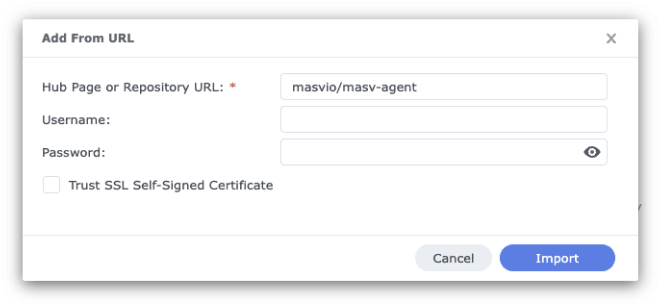
- In the Add From URL window, copy and paste the following into the Hub Page or Repository URL box:
masv/masv-agent.Note: Username and Password boxes should be blank. - Select the Import button, and in the Choose Tag window, select latest from the Please Choose a Tag drop-down menu.
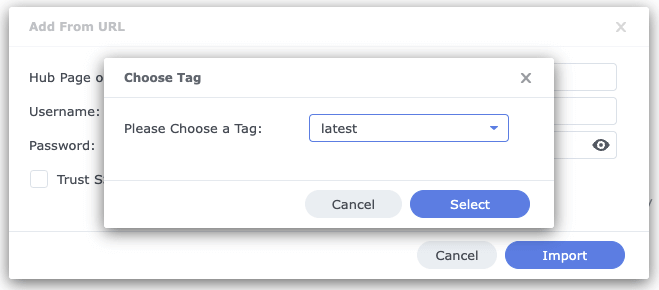
- Choose Select, and within a few moments, the masv-agent image will display in the Image list.
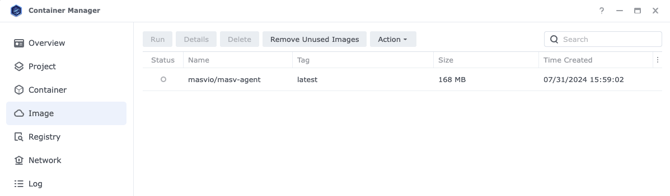
Now you're ready to create and configure a container for the MASV Agent.
Create a container in the Synology Container Manager
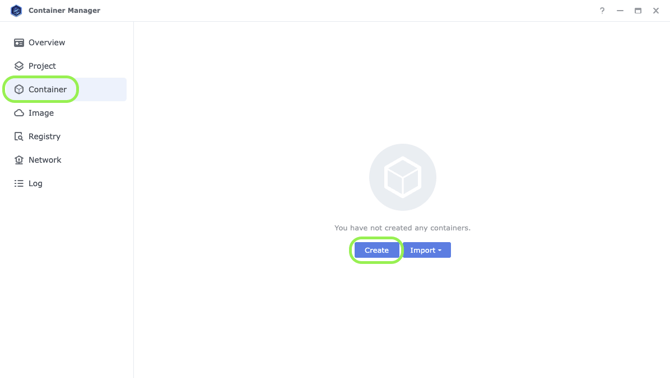
- In the Container Manager, select Container from the sidebar, and select the Create button.
- On the General Settings page, from the Image drop-down menu, select masvio/masv-agent:latest.
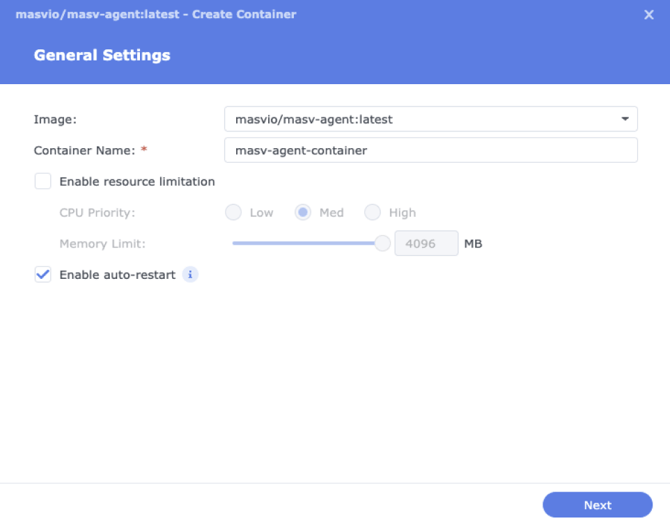
- In the Container Name box, type a container name. For example, masv-agent-container.
- (Optional) If you want to set resource limitations, select the Enable resource limitation checkbox and choose the settings you want.
- Select Enable auto-restart, then select Next.
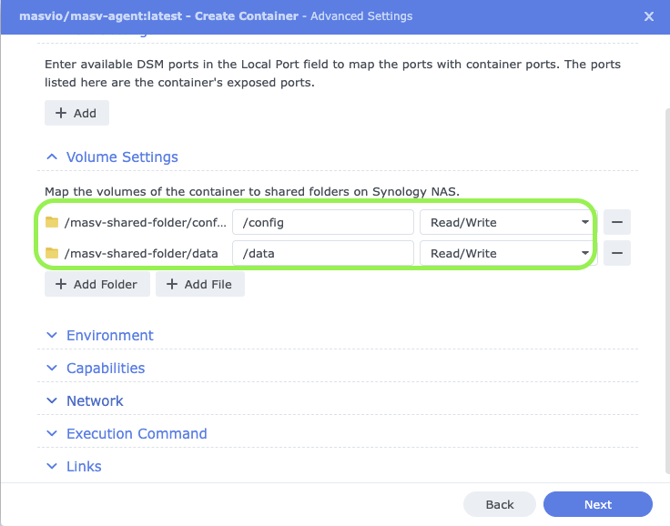
- On the Advanced Settings page, open the Volume Settings area. This is where you map the volumes of the container to shared folders on your Synology device.
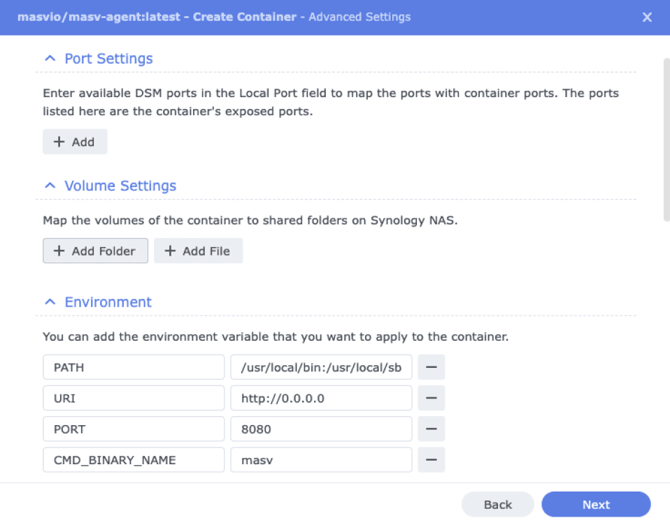
- Select the Add Folder button, and in the Add window, create or select the shared folders you want to use. MASV Agent uses the default folders /config and /data. For simplicity, in this tutorial we created a folder (masv-shared-folder) and map the MASV Agent container folders to storage folders with the same names: config and data subfolders. Note: Be aware of who has permissions to access the mapped storage folders. You might need to set up user and group IDs to manage access.
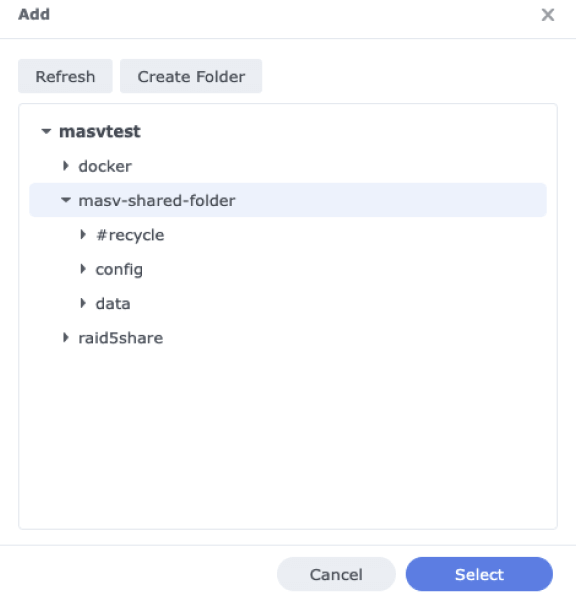
- Click the Select button to choose the first folder you want, then repeat the process for the second folder.
- In the Volume Settings area, map the folders you selected to /config and /data, and choose Read/Write to allow MASV to send files to your Synology device.
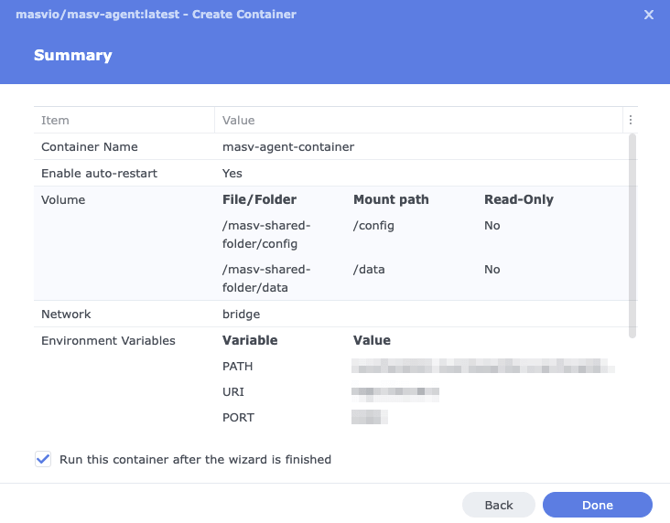
- Select Next, review the Summary page, and select Done.
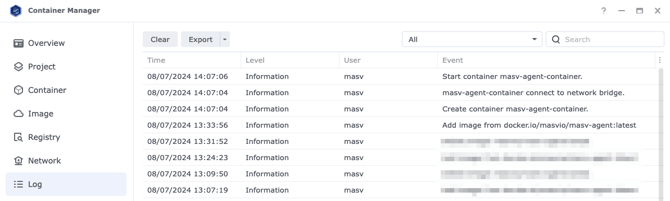
- Verify that the container and MASV Agent installation are working by selecting Log in the sidebar on the left and checking the Log list. You should see the following event: “Start container [your MASV container name].”
Synology integration in MASV
After you create and configure the MASV Agent container on your Synology device, you can finish setting up the integration by creating a secure connection between MASV and the device.
To connect a Synology NAS to MASV
- In the MASV Web App, as Team Owner or Admin (role), select Integrations from the sidebar on the left.
- From the Integrations page, select the Available Integrations tab, and select Synology.
- In the Add Integration window, type a name in the Connection Name box.
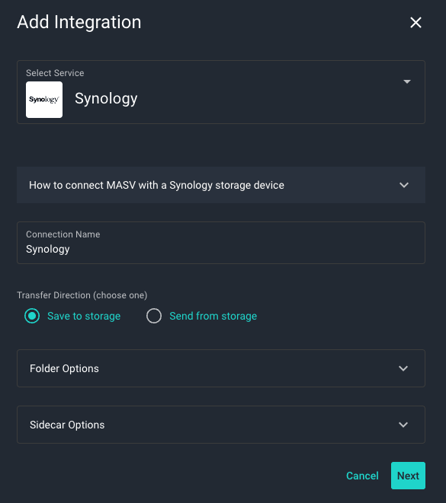 In the Transfer Direction area, choose a direction:
-
Save to storage: For inbound files (Write)--MASV transfers files to the storage device.
-
Send from storage: For outbound files (Read)--MASV transfers files out of the storage device.
-
-
Choose any of the following settings in Folder Options or Source Directories:
- Target Subdirectory (Save to storage direction only): To set an optional relative path, type a path in the Target Subdirectory box. You can edit this directory as needed.
- Save directly in upload/target directory (Save to storage direction only): If you want to save the files in a directory that uses the package name, clear the checkbox. To deliver directly into the Target Subdirectory, select the checkbox.
- Source Directories (Send from storage direction only): To limit access to a specific folder/directory, in Source Directories, type a relative path. You can edit this directory as needed.
- (Optional, Save to storage direction only) In Sidecar Options, if you are passing metadata to Mimir, enter a Mimir Sidecar Form ID.
-
Select Next.
-
In the Register Integration window, skip step 1 (assuming you have installed the MASV Agent by following the instructions at the top of this page), and copy the block of code from step 2.
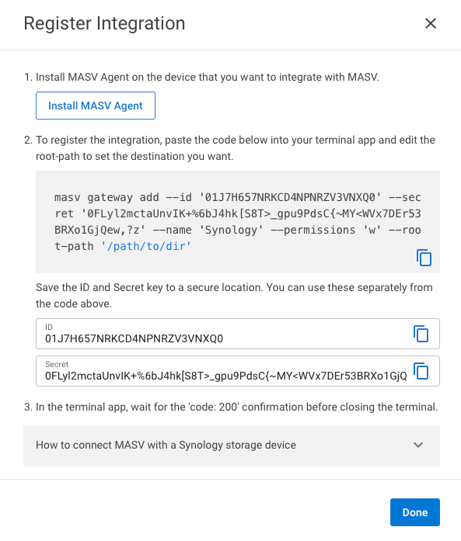
-
Paste the block of code into the Synology Container Manager Terminal window. You can find the Terminal window in Container Manager by selecting Container in the sidebar, selecting your MASV container, and choosing Open terminal from the Actions menu in the upper-right corner.
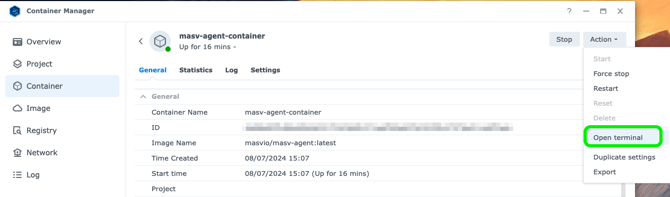
- Tip: If you run into issues pasting the code, try right-clicking with your mouse and selecting Paste from the context menu. You can also click the Hot Keys button in the upper-right corner of the Terminal window and follow the instructions for pasting.
- In the Terminal window, edit the placeholder text ('/path/to/dir/') for the root-path to point to a pre-existing directory that you want to access. For example, if using the default path for the MASV Agent, replace '/path/to/dir/' with '/data/'.
- (Optional) User and Group: By default, user and group are set to Admin, so if you need other user and group settings, visit MASV Agent setup with Docker.
- Press Enter, and when the Terminal window responds with “code”: 200, select the Done button in the MASV Web App.
- In the MASV Web App, your new integration displays in the list on the My Integrations tab. Refresh the page to update the Status column. OK displays if the connection is successful and ready to use.
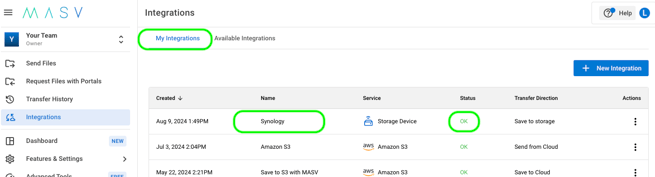
Note: The MASV Status column indicates if a connection is registered. It does not indicate when a target device becomes unavailable, so monitor your destination device to ensure it is available for transfers.
Save files to your Synology NAS with MASV portals
MASV portals are web uploaders that make it easy to collect files from contributors and deliver them to your storage of choice. Lets take a look at how this process works with our new Synology storage integration.
You’ll first need a MASV portal. If you don’t already have one set up, you can create one in the MASV Web App. For full instructions, see How to create, edit, or delete a portal. You can create an Instant Portal in a couple of clicks, or create a Custom Portal that is brandable, sets file requirements, and collects metadata.
To save files to your Synology NAS by using MASV portals
1. In the MASV Web App, select Request Files with Portals from the sidebar on the left.
2. On the Request Files page, choose a portal, and in the Actions column, select the menu icon [three vertical dots], and select Edit.
3. On the Edit Portal page, select the Integrations tab, and in the Status column, enable the toggle for your Synology integration.
4. Select the Save button in the lower right corner of the page to apply the changes.
5. Return to the Request Files page. Now you’re ready to send a file request. Select the Actions menu icon for your portal, and select Send Upload Request from the menu.
6. Fill in the Send Upload Request Via Email fields, adding the email recipients and the message that you want to send.
7. Select the Send Request button to close the window.
Recipients receive an email with a link to the portal upload page.
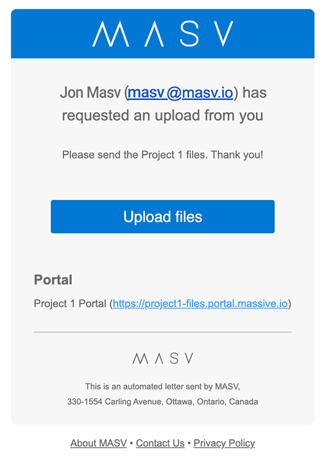
After the recipient uploads files, you'll receive an email confirming that a package has been delivered to your integration.
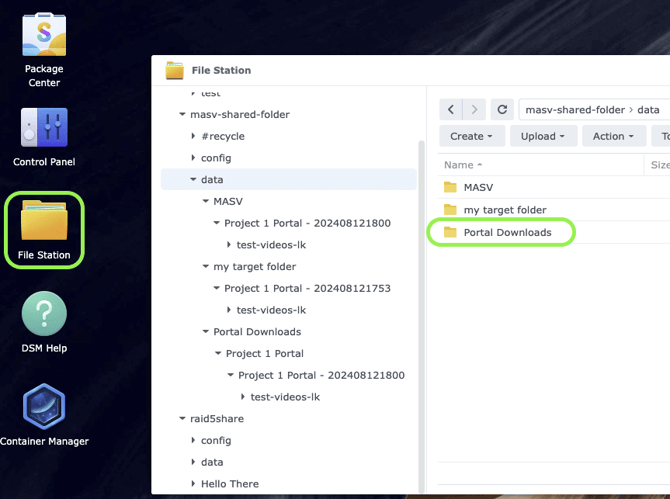
On your Synology device, open File Station, and navigate to your mapped folder. If you didn’t set an optional Target Directory in MASV, your files are saved to the following default location: Portal Downloads > [Portal name] > [Package name].
Tip: You can monitor all sent or received packages efficiently using the MASV Web App. Navigate to Transfer History, access the Received tab to view a detailed delivery log of received packages. From here, you can also send any active package to integrations like Synology by selecting the package, and from the Actions menu choosing Send Package to Cloud, and selecting the integration.