
As a package recipient, you can choose to cancel a package upload by deleting the in-progress package transfer. What happens when you delete an in-progress package upload?
- The sender is presented with an "Upload cancelled" message that suggests they contact the recipient if they need information about why the upload was cancelled.
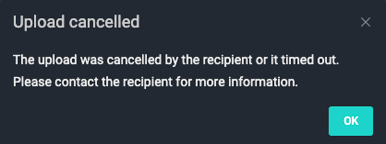
- Any files delivered prior to the package upload cancellation remain in the destination (partial package delivery).
- As a MASV Team Owner or Admin, you can view a record of the cancellation by selecting Dashboard > Package Activity Feed. The Activity State for the package displays as Cancelled.
Note: Package composition affects how soon the person uploading content will see the Upload cancelled message. The message triggers towards the end of the first file upload.
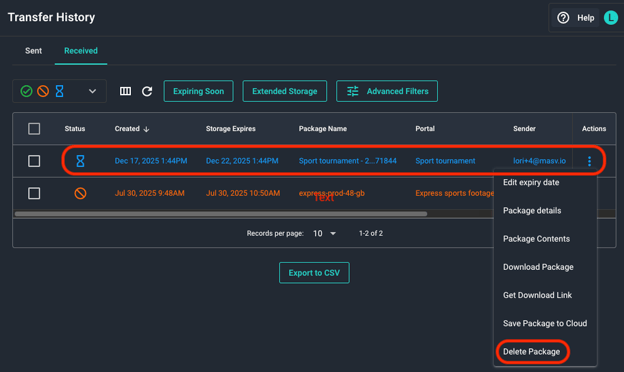
To cancel an in-progress package upload from the Transfer History
- In the MASV Web App, select Transfer History from the sidebar on the left.
- Select the Received tab.
- Select the in-progress package transfer that you want to cancel.
- From the corresponding Actions menu, select Delete Package.
- Select the Delete button in the confirmation window. The package is deleted from the Transfer History.
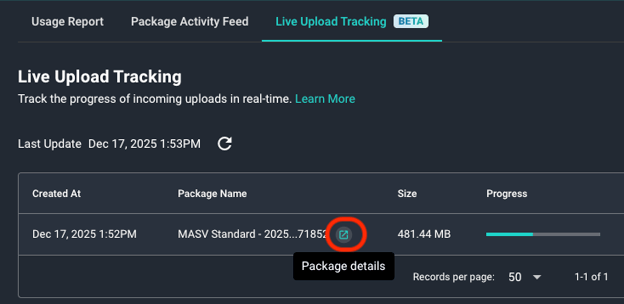
To cancel an in-progress package upload from Live Upload Tracking
- In the MASV Web App, as a Team Owner or Admin, select Dashboard from the sidebar on the left.
- Select the Live Upload Tracking tab.
- Select the Package Details button to the right of the Package Name for the in-progress upload that you want to cancel.
- On the Package Details page, select the Delete Package button in the upper right corner.

- Select the Delete button in the confirmation window. The package is deleted from the Transfer History and the Live Upload Tracking page.