
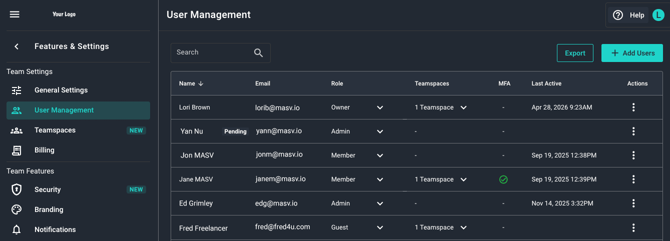
The User Management page in the MASV Web App lets team Owners and Admins (roles) add or remove users from their team as well as edit user roles. Other helpful information is also available from the User Management page, including:
-
Status of new member invitation (Pending displays if invitation is not accepted or approved yet.)
-
Teamspaces: Displays the number of teamspaces the member belongs and provides a drop-down menu with the name of the teamspaces as well as quick access to the Teamspaces page if you want to make changes. Initial teamspaces must be assigned to a user via the Teamspaces page. For more information, see How to control access with MASV teamspaces.
-
MFA: Indicates if multifactor authentication is enabled for the user.
-
Last Active: Displays the date and time that the user last signed in to MASV.
You can add users by sending an invitation to their email address (pre-approved) or you can create a shareable link that you can distribute to a group of users and approve each user who registers.
You can also export the user list to a CSV file. All information in the associated columns is exported.
To add a user to your team by sending an email invitation
- In the MASV Web App, sign in as a team Owner, Admin, or a user with user management permissions. If you have more than one team, ensure that you select the team you want from the top of the sidebar on the left.
- From the sidebar, select Features & Settings > User Management.
- On the User Management page, select the Add Users button.
- In the Email Recipients box, enter one or more email addresses, and select the Add button.
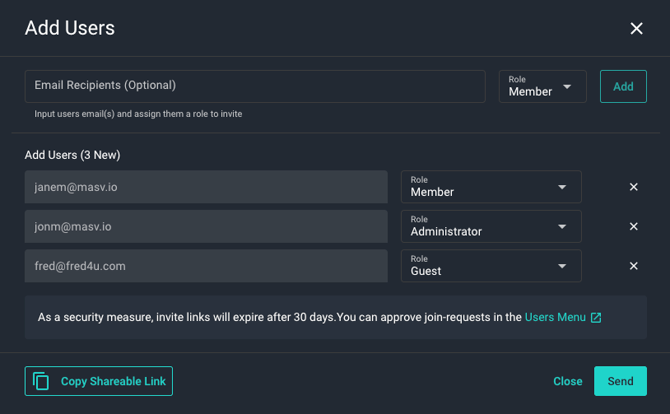
- Review the Add Users list that displays for each invited user. If you want to change the default role (Member), in the Role box to the right of the user's email, select the role you want from the drop-down menu.
- Select the Send button. An email invitation is sent to the corresponding email address and the user is added to the User Management page, but Pending appears to the right of their name until they accept your invitation.
Tip: You can also access the Add Users window from the Teams menu on the sidebar. 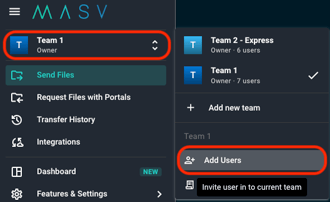
To add a user to your team by sending a shareable link
- In the MASV Web App, sign in as a Team Owner or Admin. If you have more than one Team, ensure that you select the Team you want from the top of the sidebar on the left.
- From the sidebar, select Features & Settings > User Management.
- On the User Management page, select the Add Users button.
- Select the Copy Shareable Link button to copy the link to your clipboard, and select Close to close the Add Users window.
- Distribute the link by pasting it into your communication tool of choice (Slack, Messenger...).
- Link recipients will be walked through the steps of adding their email address, and setting a password. You will receive an email confirming that the user has requested to join your Team. In the email, select the button to accept their request.
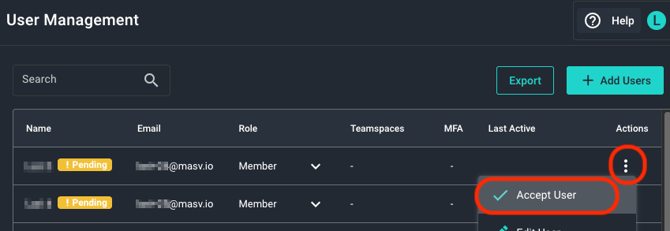
- The User Management page opens and the new users who want to join the Team are displayed with a yellow Pending tag.
- From the Actions menu, select Accept User to confirm that you want to add the user to your Team. The user is assigned the default role. You can change the role by selecting a new role from the dropdown menu available in the Role column.
To remove a user from your team
- In the MASV Web App, sign in as a team Owner or Admin. If you have more than one team, ensure that you select the team you want from the top of the sidebar on the left.
- From the sidebar, select Features & Settings > User Management.
- On the User Management page, select the user that you want to remove, and from the Actions menu, select Remove User.
To change the role assigned to a user
- In the MASV Web App, sign in as a team Owner or Admin. If you have more than one team, ensure that you select the team you want from the top of the sidebar on the left.
- From the sidebar, select Features & Settings > User Management.
- On the User Management page, select the user that you want to edit, and from the Actions menu, select Edit User.
- In the Edit User window, select the role you want to assign from the dropdown menu.
To export a list of users to a CSV file
- In the MASV Web App, sign in as a Team Owner or Admin. If you have more than one Team, ensure that you select the Team you want from the top of the sidebar on the left.
- From the sidebar, select Features & Settings > User Management.
- On the User Management page, select Export. A CSV file containing a list of the users and the information displayed in the associated columns is saved to your Downloads folder.