
You can integrate MASV with the Microsoft Azure Blob Storage–secure, scalable, object cloud storage. With the integration, you can provide contributors with a link to a MASV Portal, and easily ingest large files to a container in your Azure Blob Storage account.
Information you’ll need to have ready
To make the process go smoothly, have the following information on hand. Please refer to your Microsoft Azure Blob Storage documentation.
- Azure Blob Storage SAS URL: Grant MASV limited access to your storage by creating a shared access signature (SAS). See To create a Azure Storage SAS URL for MASV.
- Azure Blob Storage container name (available from Azure Storage Center for your Blob Storage account > Blob storage > Storage browser). The container must belong to the storage account that you use to create the SAS URL. Files delivered via your MASV integration will be delivered to the container you choose.
- Know the path information if setting a subdirectory
Connect MASV with Azure Blob Storage with SAS access
First you'll generate a SAS URL with the required access settings and then create the connection with MASV in the MASV Web App.
To create an Azure Storage SAS URL for MASV
- Log in to Azure Blob Storage.
- From the Dashboard, navigate to Storage center and select the Storage account you want to use.
- In the sidebar for the account, select Security + networking > Shared access signature.
- Choose the following settings:
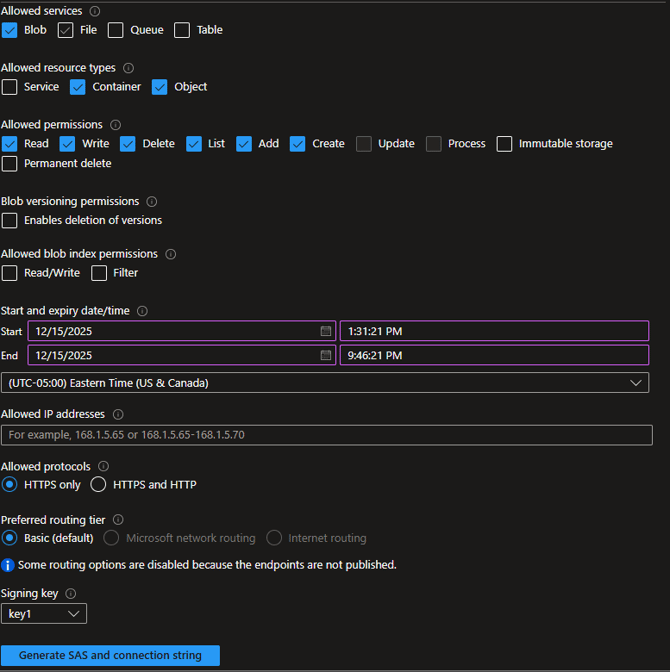
- Allowed services: Select Blob (only)
- Allowed resource types: Select Object, Container
- Allowed permissions: Select Read, Write, Delete, List, Add, Create
- In the Start and expiry date/time boxes, set a start time from now and set a future expiry date. Note: When a SAS URL expires, the associated cloud integration will not work until a new SAS URL is generated and updated in the MASV integration.
- In Allowed protocols, select HTTPS only (MASV does not transfer over non-secure URLs).
- In the Preferred routing tier, select Basic (default).
- In the Signing key drop-down menu, select the key you want to use.
- Select the Generate SAS and connection string button.
- Copy the URL from the Blob service SAS URL box.
To connect MASV with Azure Blob Storage
- In the MASV Web App, as a Team Owner, Admin, or Integration Manager (role), select Integrations from the sidebar on the left.
- On the Integrations page, select the Available Integrations tab.
- In the Cloud Integrations area, select Azure.
- In the Add Integration window, type a meaningful name in the Connection Name box. This name will help you identify the connection in your My Integrations list.
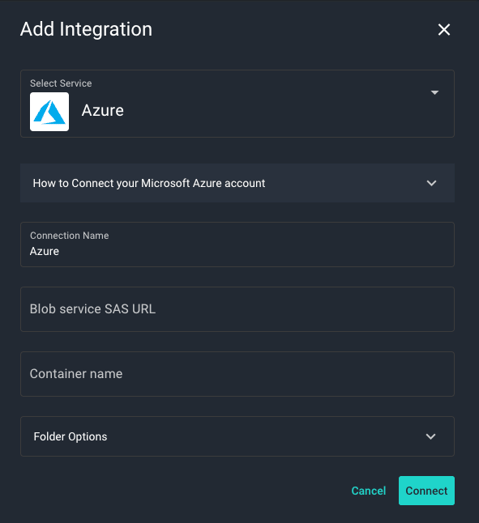
- In the Blob service SAS URL box, paste the URL that you generated in Azure Storage center.
- In the Container name box, paste the name of the Azure Blob Storage container where you want the files to be delivered.
- Choose any of the following settings in Folder Options:
- To set a relative path, type a path in the Target Subdirectory box.
- If you want to save the files in a directory that uses the package name, clear the checkbox. To deliver directly into the Target Subdirectory, select the checkbox.
- Select the Connect button.
- Refresh the page, and select the My Integrations tab to confirm that OK appears in the Status column.
That's it! After authentication, the service is connected with MASV. You can now:
Tip: You can edit the Target Subdirectory that you set in MASV at any time without creating a new integration. You can also append subdirectories to create a custom path when you associate the integration with a MASV Portal.